Ignoring Exceptions
Use the Exceptions control to view and ignore exceptions once you have analyzed the associated record data.
You can filter and group exceptions within the control to help analyze their circumstances to determine what generated them and if they warrant being ignored. See Filtering and Sorting Exceptions for more information about this process.
Although exceptions can be ignored, they are never actually "resolved." Instead, the exception can become closed when a new data record supersedes the data record that originally caused the exception. This new data record will be validated (if the system is configured to validate edits) and may, or may not, generate the same or different exceptions.
You must have proper security authorization to access exception handling functionality. See FMS Security (and EXCP security event) for more information about configuring security access to ignore exceptions.
Clearing Exceptions by Changing Validation Rules
If you find that a data value associated with an exception is valid, but determine that the exception should not have been generated, you may choose to clear one or more exceptions by modifying the Validation Rules that produced them, and then re-validate the data so that the system no longer generates such exceptions. See Managing Validation Engines for more information.
Ignoring Exceptions Manually
If you find that the data value associated with an exception is valid, after analyzing the circumstances that caused it, you may choose to ignore one or more exceptions. The Ignore exceptions option is enabled only when the selected exception has an exception status of "open." When multiple exceptions are selected, all must have an "open" status in order to be ignored.
When an exception is ignored, additional actions occur: an audit record is created, and the data quality value for the associated history record (that triggered the exception) is updated, if there are no other outstanding exceptions.
- An audit record will be attached to the exception record to track why the issue was ignored. When the record is closed (superseded), then no audit record is recorded.
- The data quality value associated with the history record that triggered the exception will automatically be changed upon the exception being ignored (if there are no other outstanding exceptions), to match the value that is specified as the "Quality for device data that validates" setting in the Administrative Options. See Configuring Data Quality Settings for more information about this system value.
See Using the Gas Analysis Data View of the Configuration control for more information about viewing exceptions for gas analysis records.
See Using the History Grid Control for more information about viewing open exceptions for history records.
To Manually Ignore an Exception
- From the Exceptions control, select an open exception of interest from the data grid, right-click to access the context menu, and then click Ignore exception. The Save Record dialog box will open.
|
Save Record |
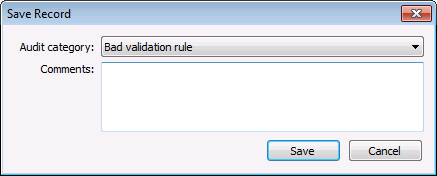
- Select an Audit category from the drop-down menu. The Audit category options are as configured on the Admin menu, and the audit category type for administrative configuration purposes is Ignoring Exceptions. See Configuring Audit Categories for more information. The ignored exception action will be displayed in the "Ignored Audit Record" column of the Exceptions control.
- Add any relevant Comments regarding the audit record in the text box. Although comments are optional, they can be helpful when auditing or reviewing records later.
- Click Save to commit the record.
- Optionally, click Refresh to update the Exceptions grid (although the Exceptions control will refresh automatically when the Ignore exceptions processing is complete).
Note: If you are experiencing a delay when ignoring lots of different exceptions, you may want to process fewer ignored exceptions at a time, committing the changes more frequently. The processing time required depends on the size and speed of your system.
- When the action is complete, the Exception status for the exception will show Ignored. When the exception has been filtered out, it does not appear.


